
一、设置CSS颜色和大小
1.1 文字颜色color
h1 {
  color: blue;
}
颜色写法常见有三种:
- 英文单词:
red、blue - 十六进制:
#ff0000(红) - rgb:
rgb(255, 0, 0)
1.2 字体大小 font-size
p {
  font-size: 16px;
}
初学阶段最常用单位是 px(像素)。后面再逐步学习 em / rem / % / vw。
1.3 宽度 width 与高度 height
.box {
  width: 200px;
  height: 100px;
}
1.4 让盒子看得见(背景/边框)
很多新手写了 width/height 但是“看不到”,因为它没有背景或边框:
.box {
  width: 200px;
  height: 100px;
  background-color: #f2f2f2;
  border: 1px solid #333;
}
1.5 示例说明
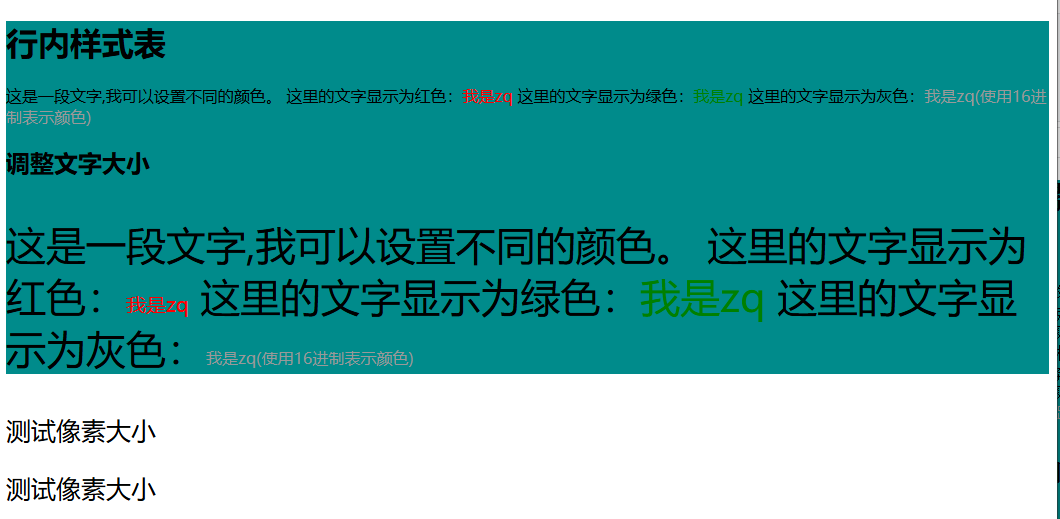
1、创建一个名为css-study的文件夹并使用VSCode打开,再创建一个名为1.设置CSS颜色和大小.html
<!DOCTYPE html>
<html>
    <!-- 设置背景颜色为darkcyan -->
    <div style="background-color: darkcyan;">
        <h1>行内样式表</h1>

        <p>
            这是一段文字,我可以设置不同的颜色。
            这里的文字显示为红色:<span style="color: red;">我是zq</span>
            这里的文字显示为绿色:<span style="color: green;">我是zq</span>
            <!-- 使用16进制表示颜色 -->
            这里的文字显示为灰色:<span style="color: #999;">我是zq(使用16进制表示颜色)</span>
        </p>
        <h2>调整文字大小</h2>
        <!-- 本段全局设置大小为40px,优先级低于下面单独设置的大小 -->
        <p style="font-size: 40px;">
            这是一段文字,我可以设置不同的颜色。
            这里的文字显示为红色:<span style="color: red;font-size: 20px;">我是zq</span>
            这里的文字显示为绿色:<span style="color: green;">我是zq</span>
            <!-- 使用16进制表示颜色 -->
            这里的文字显示为灰色:<span style="color: #999;font-size: 16px;">我是zq(使用16进制表示颜色)</span>
        </p>
    </div>
    <!-- 使用百分比调整像素大小 -->
    <div style="font-size: 50px;">
        <p style="font-size: 50%;">测试像素大小</p>
        <p style="font-size: 25px;">测试像素大小</p>
    </div>
</html>
2、双击【1.设置CSS颜色和大小.html】
二、设置CSS位置
这里的“位置”通常指两类:
- 布局方式:让元素左右排列/居中/换行(Flex 最常用)
- 定位 position:固定在某个地方、悬浮在页面上
2.1 text-align:让“行内内容”居中
适用于文字、行内元素、图片(图片要变成行内/行内块)
.container {
  text-align: center;
}
2.2 margin: 0 auto:让“块级元素”水平居中
前提:元素必须有宽度
.box {
  width: 300px;
  margin: 0 auto;
}
2.3 position 定位(快速理解)
CSS 定位常见值:
static:默认relative:相对定位(相对于自己原位置)absolute:绝对定位(相对于最近的“已定位祖先”)fixed:固定定位(相对于浏览器窗口)sticky:粘性定位(滚动到某个位置吸顶)
例子:右下角固定一个按钮(回到顶部按钮常见)
.back-top {
  position: fixed;
  right: 20px;
  bottom: 20px;
}
2.4 示例说明
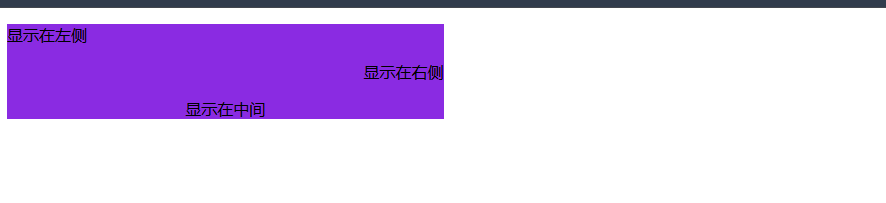
1、创建一个名为css-study的文件夹并使用VSCode打开,再创建一个名为2.设置CSS位置.html
<!DOCTYPE html>
<html>
    <!-- 设置背景颜色为blueviolet,宽度为50% -->
    <div style="background-color: blueviolet;width: 50%;">
        <p style="text-align: left;">显示在左侧</p>
        <p style="text-align: right;">显示在右侧</p>
        <p style="text-align: center;">显示在中间</p>
    </div>
</html>
2、双击【2.设置CSS位置和内外边距.html】
三、设置CSS背景
3.1 背景颜色 background-color
body {
  background-color: #fafafa;
}
3.2 背景图片 background-image
.banner {
  background-image: url("banner.jpg");
}
3.3 背景是否重复 background-repeat
.banner {
  background-repeat: no-repeat;
}
3.4 背景尺寸 background-size
常见两种写法:
.banner {
  background-size: cover;   /* 铺满容器,可能裁剪 */
  /* background-size: contain; */ /* 完整显示,可能留白 */
}
3.5 背景位置 background-position
.banner {
  background-position: center center;
}
3.6 示例说明
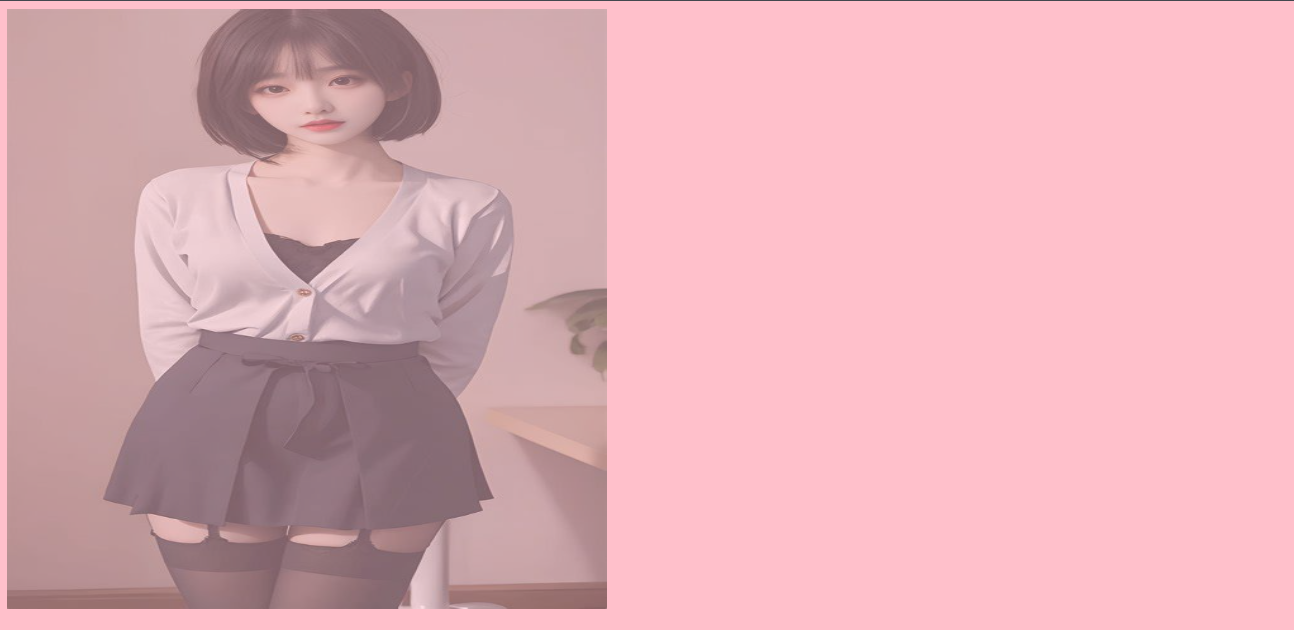
1、创建一个名为css-study的文件夹并使用VSCode打开,再创建一个名为5.设置CSS背景.html
<!DOCTYPE html>
<html>
    <!-- 设置全屏的背景 -->
    <body style="background-color: pink;">
        <!--
        CSS背景:
        1.固定的颜色
        2.图片
        3.透明度
        -->

        <!-- repeat可选参数
        1.repeat:默认值 重复
        2.no-repeat:不重复
        3.repeat-y:在y轴重复
        4.repeat-x:在y轴重复
        -->

        <!-- background-repeat: repeat-x表示图片在x轴重复 -->
        <!-- opacity: 0.5表示图片透明度参数为0.5 -->
        <div style="width: 600px;height: 600px;background-color: red;
        background-image: url(https://bucketbucket1.oss-cn-beijing.aliyuncs.com/imag/image-20250519081918669.png);
        background-size: 600px 600px;
        background-repeat: repeat-x;
        opacity: 0.5;
        ">
        </div>
    </body>
</html>
2、双击【5.设置CSS背景.html】